

Playinmatch for iPhone and iPad
Playinmatch works fully on every iPhone and iPad through Safari. You get the same dashboard, the same wallet, the same live scores, and the same UPI deposit options you would get on Android.
The setup takes thirty seconds. You add a shortcut to your home screen, and it behaves exactly like a native app. One tap opens your account. No browser tabs, no typing URLs, no bookmarks buried in a folder.
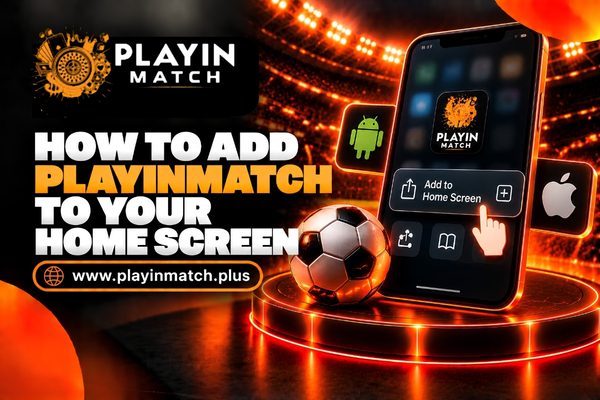
How to Add Playinmatch to Your Home Screen
Follow these four steps. You only need to do this once.
- Open Safari on your iPhone or iPad.
- Go to the official Playinmatch website.
- Tap the Share icon at the bottom of the screen. It looks like a square with an arrow pointing up.
- Scroll down and tap Add to Home Screen. Confirm by tapping Add in the top right corner.
The Playinmatch icon now sits on your home screen alongside your other apps. Tap it, and your dashboard loads instantly.
What You Get With the Home Screen Shortcut
This is not a watered-down mobile page. The shortcut opens the full platform in a clean, full-screen view.
- Full Dashboard Access: Check your wallet balance, deposit via UPI, withdraw funds, and view transaction history.
- Live Sports Updates: Follow IPL, football, and tennis scores in real time. The layout adjusts to your screen size automatically.
- Casino and Games: Play crash games, live tables, slots, and instant-win formats without any restrictions.
- Account Management: Update your profile, set deposit limits, enable two-factor login, and contact support.
- No Browser Clutter: The shortcut opens in its own window. No address bar, no extra tabs, no bookmark menus.
It looks and feels like an app you downloaded from the App Store. The difference is that nothing gets installed on your device storage.

Why Playinmatch Is Not on the App Store
Apple enforces strict review policies for apps that involve real-money transactions and live event tracking. Many platforms in this space face long approval delays or repeated rejections during the review process.
Rather than keep users waiting or ship a limited version, we made the platform fully accessible through Safari. The home screen shortcut gives you the same experience without depending on App Store approval timelines.
This also means you never have to deal with forced updates that break your saved settings. The platform updates on our end, and the changes appear the next time you open the shortcut. No downloads, no waiting, no storage used.

System Requirements for iOS
Playinmatch runs on any iPhone or iPad that can open Safari. You do not need the latest model.
| Requirement | Details |
|---|---|
|
Device
|
iPhone 6s or newer, iPad Air 2 or newer |
|
iOS Version
|
iOS 12.0 or later |
|
Browser
|
Safari (recommended) or Chrome |
|
Internet
|
4G, 5G, or Wi-Fi |
|
Storage
|
No installation needed. Zero storage used. |
If your device runs iOS 12 or above, you are good to go. The platform scales down for smaller screens like the iPhone SE and scales up for iPad displays.
Tips for the Best iOS Experience
A few small settings make the experience smoother.
Use Safari, Not Chrome
Safari handles the home screen shortcut better than any third-party browser. It supports full-screen mode, smoother animations, and faster loading. Chrome works, but Safari gives you the cleanest experience.
Enable Biometric Login
After your first login, Safari will ask if you want to save your credentials. Say yes. Next time, you can use Face ID or Touch ID to log in without typing your password.
Clear Cache Once a Month
If pages start loading slowly, clear your Safari cache. Go to Settings > Safari > Clear History and Website Data. This takes ten seconds and fixes most slowdowns.
Avoid Private Browsing
Private browsing mode does not save cookies or session data. You will have to log in every single time you open the platform. Use a normal Safari tab instead.
Troubleshooting Common iOS Issues
Sometimes things do not work perfectly. Here are the most common fixes.
Shortcut Not Appearing on Home Screen
Make sure you tapped "Add to Home Screen" and not "Add to Reading List." If the icon still does not show, restart your iPhone and try the steps again.
Page Loads Blank or Freezes
Close Safari completely by swiping up from the bottom of the screen and swiping the Safari card away. Reopen it and load the page again. If the problem repeats, clear your cache.
Login Not Saving
Check that you are not in Private Browsing mode. Safari does not store login details in private tabs. Switch to a regular tab and log in again.
Deposit or Withdrawal Page Not Loading
This usually happens on a weak network. Switch from Wi-Fi to mobile data or vice versa. If the issue continues, try a different browser temporarily and contact support.
OTP Not Arriving
Check your signal strength. iMessage settings can sometimes interfere with SMS delivery. Go to Settings > Messages and make sure "Send as SMS" is turned on. Wait sixty seconds before requesting a new code.
iOS vs. Android: Any Differences?
The platform is identical on both operating systems. You get the same games, the same sports coverage, the same wallet, and the same support channels.
The only difference is how you access it. Android users install an APK file. iOS users add a home screen shortcut through Safari. Once you are in, the experience is exactly the same.
Your account works across both platforms. If you switch from an Android phone to an iPhone, your login details, wallet balance, and transaction history carry over instantly. You do not need to create a new account.
Security on iOS
Apple devices come with built-in security features that add an extra layer of protection.
- Face ID and Touch ID: Use biometric authentication to lock the Safari shortcut. No one else can open your dashboard without your face or fingerprint.
- App Tracking Transparency: iOS blocks third-party trackers by default. Your browsing data stays private.
- No APK Risk: Since you are not installing a file, there is zero risk of downloading a modified or malicious version. The shortcut always points to the official Playinmatch domain.
We still recommend the same habits you would follow on any device. Do not save your password on a shared iPad. Log out after every session if someone else uses your phone. Never share your OTP with anyone.

Frequently Asked Questions
01 Do I need to download anything to use Playinmatch on iPhone?
No. You add a shortcut to your home screen through Safari. Nothing gets installed, and no storage space is used.
02 Is the home screen shortcut safe?
Yes. It is a built-in Safari feature provided by Apple. The shortcut links directly to the official Playinmatch website. No third-party software is involved.
03 Can I use Playinmatch on an iPad?
Yes. The platform scales up for iPad screens. Follow the same Safari steps to add the shortcut to your iPad home screen.
04 Will the shortcut stop working after an iOS update?
No. The shortcut is stored locally on your device. iOS updates do not remove home screen shortcuts. If the layout looks slightly different after a major update, delete the shortcut and add it again.
05 Can I receive notifications on iOS?
Currently, push notifications require a native app. Since Playinmatch runs through Safari, you will not get push alerts. We recommend checking the dashboard or enabling SMS alerts from your account settings for important updates.
06 Does Playinmatch work on older iPhones?
Yes. Any iPhone running iOS 12 or above can access the platform. The layout adjusts automatically for smaller screens like the iPhone SE or iPhone 8.
07 Can I deposit money using UPI on my iPhone?
Yes. UPI apps like Google Pay, PhonePe, and Paytm work on iOS. Select UPI at the deposit screen, enter the amount, and your UPI app will open for confirmation.
08 What happens if I clear my Safari history?
Clearing history removes saved login sessions. You will need to enter your mobile number and password again the next time you open the platform. Your account data, wallet balance, and history remain safe on our servers.
09 Can I use Face ID to log in?
Yes. After your first manual login, Safari will offer to save your credentials. Once saved, you can use Face ID or Touch ID to log in automatically.
10 Why does the page look different from the Android app?
The layout is the same. The only visual difference is that iOS opens the shortcut in Safari's full-screen mode, while Android opens the APK in its own app window. All features and menus are identical.